
How to send automatic birthday, welcome and win-back messages
Set up guest journeys once and let them run: a thank you after a first visit, a birthday invitation and a nudge for regulars you haven't seen.
The best time to thank a guest is the day after their visit, and the best time to invite them back is before they’ve forgotten you. Nobody has time to do that by hand for every guest. Automations send the right message at the right moment, every time, once you’ve set them up.
How an automation works
Each automation is a guest journey:
- A trigger starts it, such as Reservation completed or Birthday approaching.
- Steps run in order: send an email or text, wait, check something about the guest, or add a tag.
- The guest reaches the End of journey.
Open Marketing > Automations to see yours. The top of the page shows how many are live, how many guests are in a journey, how many have finished and how many messages were sent in the last 30 days.
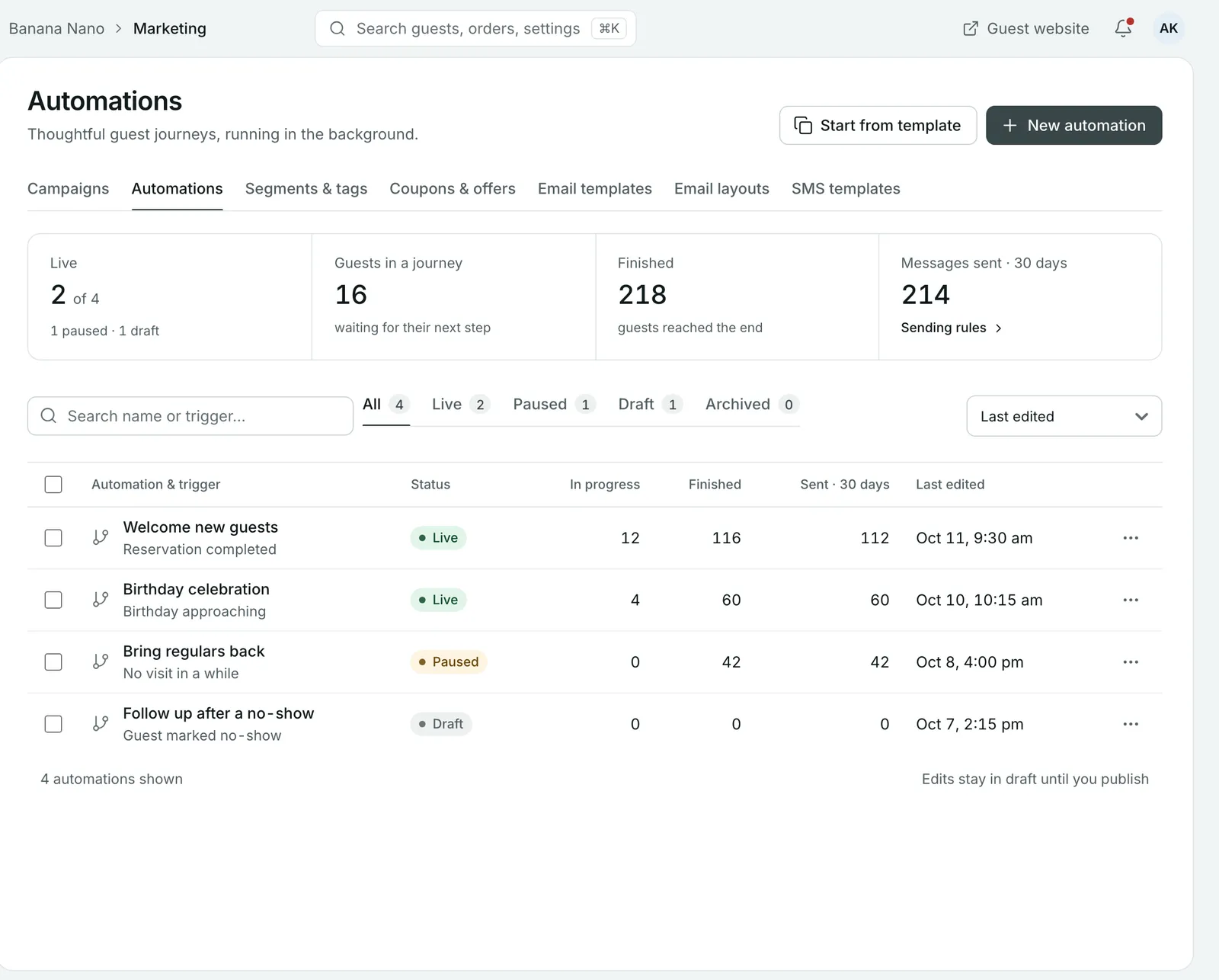
Step 1: Start from a template
Select Start from template and pick a journey. Each one is ready to edit:
| Template | Starts when | What it does |
|---|---|---|
| Welcome new guests | Reservation completed | A thank you after their first visit |
| Birthday celebration | Birthday approaching | Invites guests to celebrate with a dessert on you |
| Bring regulars back | No visit in a while | Reconnects with guests you haven’t seen recently |
| Follow up after a no-show | Guest marked no-show | Follows up with guests who missed their booking |
Or select New automation and Start from scratch.
Step 2: Set the trigger
Select Guest enters when at the top of the journey and choose the event. Some triggers have their own settings. For a birthday, choose how many days before the birthday the guest enters. The template uses 7 days.
Under the journey settings, Guests can re-enter after (days) stops a guest getting the same journey too often. For the welcome journey, First visit only means only guests completing their first visit enter.
Step 3: Build the steps
Select + to add the next step:
- Send a message: Send an email or Send a text.
- Timing & eligibility: Wait, or Only continue if guest matches.
- Split the journey: Did they open or click?, Check guest details, Has enough time passed? or Which channel can we use?
- Update the guest: add or remove a tag, or add them to or remove them from a segment.
Select any step to edit it. For a message, write the subject and text, and use Personalise to add the guest’s name.
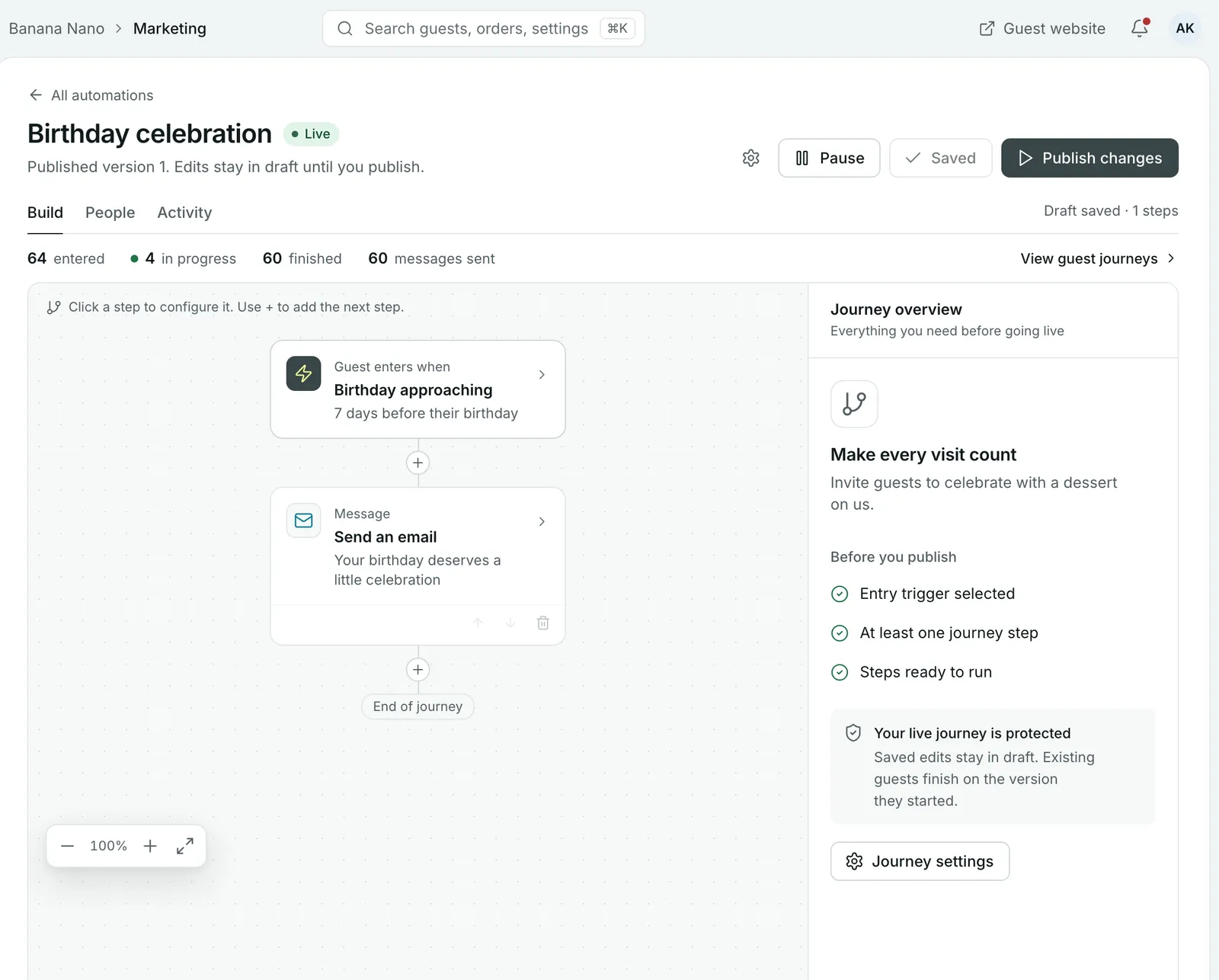
For example, a welcome journey could run like this:
- Reservation completed, first visit only.
- Wait 1 day.
- Send an email: thank them and invite them back.
- Wait 14 days.
- Did they open or click? If they didn’t, Send a text.
Step 4: Publish
The Before you publish checklist confirms you’ve chosen a trigger and added at least one step, and that every step is ready to run. Select Publish.
From now on, Save draft keeps your edits without changing the live journey. Select Publish changes when you’re ready. Guests already in the journey finish the version they started.
Keep an eye on it
Open an automation to see who’s in it and what has happened:
- People lists the guests in the journey and their current step.
- Activity records publishing, status changes and guest entries.
Use Pause to stop an automation for a while and Resume to restart it. Archive retires it and makes it view only.
Tip: Guests only receive messages they’ve agreed to. Each guest’s Marketing consent on their profile shows whether they get automations by email and by text.
Common questions
Will editing a live automation affect guests already in it?
No. Edits stay in draft until you publish them, and guests already in the journey finish the version they started.
How does Growtality know a guest's birthday?
From the Birthday on their guest profile, under Contact information. Only the month and day are used.
Can a guest get the same automation twice?
You decide, with Guests can re-enter after (days). The birthday template uses 365 days, so a guest gets one birthday message a year.
Can I stop an automation for a while?
Yes. Select Pause. Select Resume to start it again.
What can start an automation?
Booking events (created, confirmed, completed, cancelled, no-show, upcoming), order events (placed, completed, an order count reached), guest events (created, birthday approaching, no visit in a while) and tag or segment changes.
Still stuck? Submit a ticket
Tell us what you're trying to do. We'll attach this guide to your ticket, so you don't have to explain it twice.