
How to get to know your regulars with guest profiles
Every booking and order builds a guest profile: visits, spend, no-shows, preferences and notes. Use tags and segments to treat regulars like regulars.
Your best guests expect to be remembered: their usual table, their partner’s allergy, the anniversary they mentioned last year. Growtality builds a profile for every guest from their bookings and orders, so your whole team knows who’s walking in.
Find a guest
Open Guests from the sidebar. The top of the page shows how many guests are in your book and their lifetime spend.
The list shows each guest’s tags, visits, no-shows, spend, last visit and next booking. To find someone:
- search by name, phone or email
- use the All, Active and Blacklisted tabs
- open Filters, or use Sort to change the order
Read a guest profile
Select a guest to open their profile.
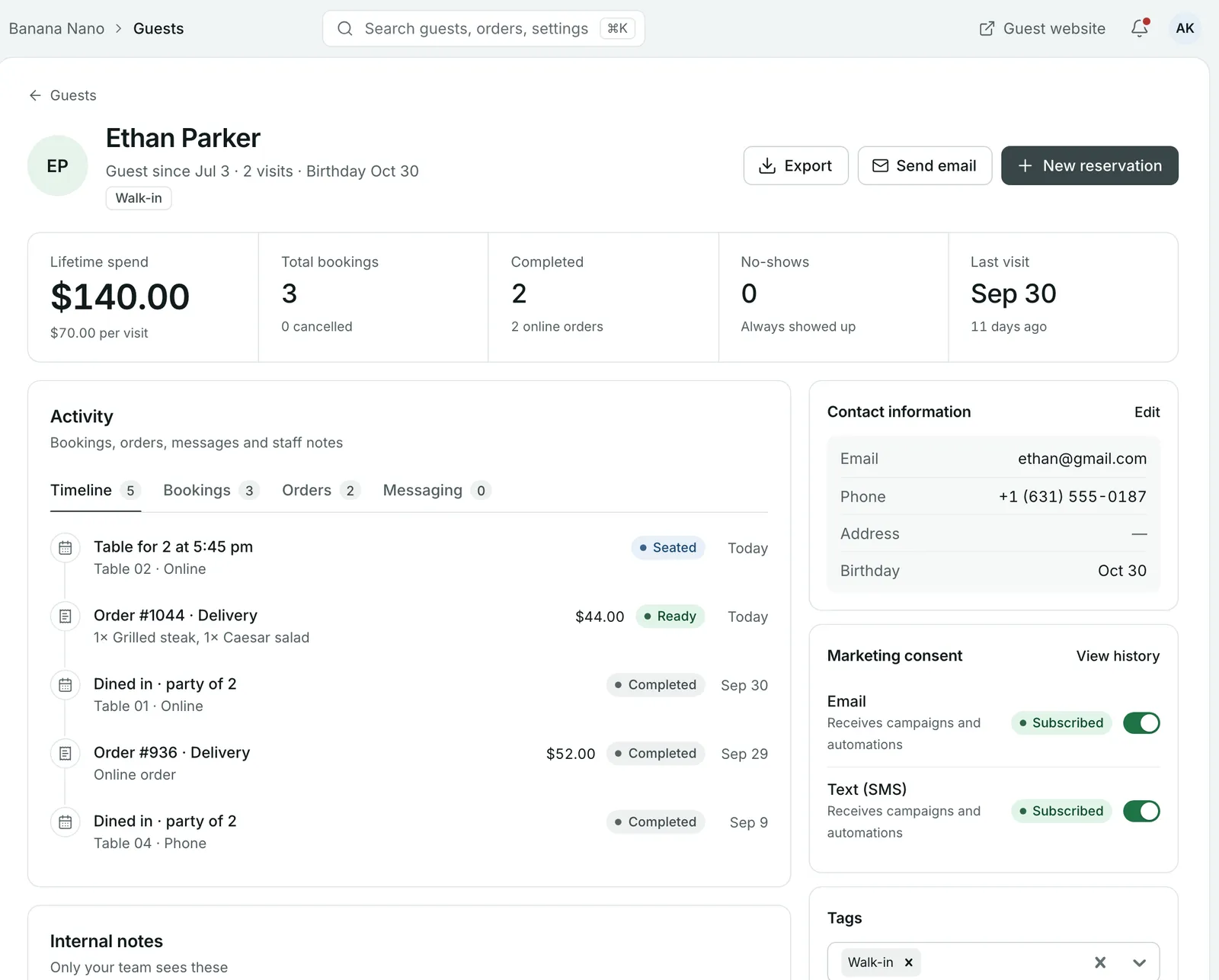
At the top you’ll see their Lifetime spend and spend per visit, Total bookings, Completed visits, No-shows and Last visit.
Activity is their history in one timeline: bookings, orders, messages and staff notes. Use the Bookings, Orders and Messaging tabs to look at one kind.
On the right:
- Contact information: email, phone, address and Birthday. The birthday is used by birthday automations.
- Marketing consent: whether they get campaigns and automations by email and by text. View history shows when that changed.
- Tags and Segments.
- Preferences: seating preference, dietary restrictions, occasion preferences and notes. These show to hosts and servers on every booking.
From the top of the profile you can also Send email or make a New reservation for them.
Step 1: Add notes your team will use
Under Internal notes, select Add note and write what the next shift needs to know. “Prefers the corner table, celebrates anniversary in June” is more useful than “nice guest”. Only your team sees these.
Fill in Preferences too. A seating preference or a dietary restriction there follows the guest onto every booking.
Step 2: Tag guests
Tags are quick labels, such as VIP, Walk-in or Birthday. To tag several guests at once, tick them in the guest list and choose Add tag. You can create a new tag from the same menu.
Step 3: Group guests into segments
Segments are the groups you send campaigns and automations to. Open Marketing > Segments & tags to see them.
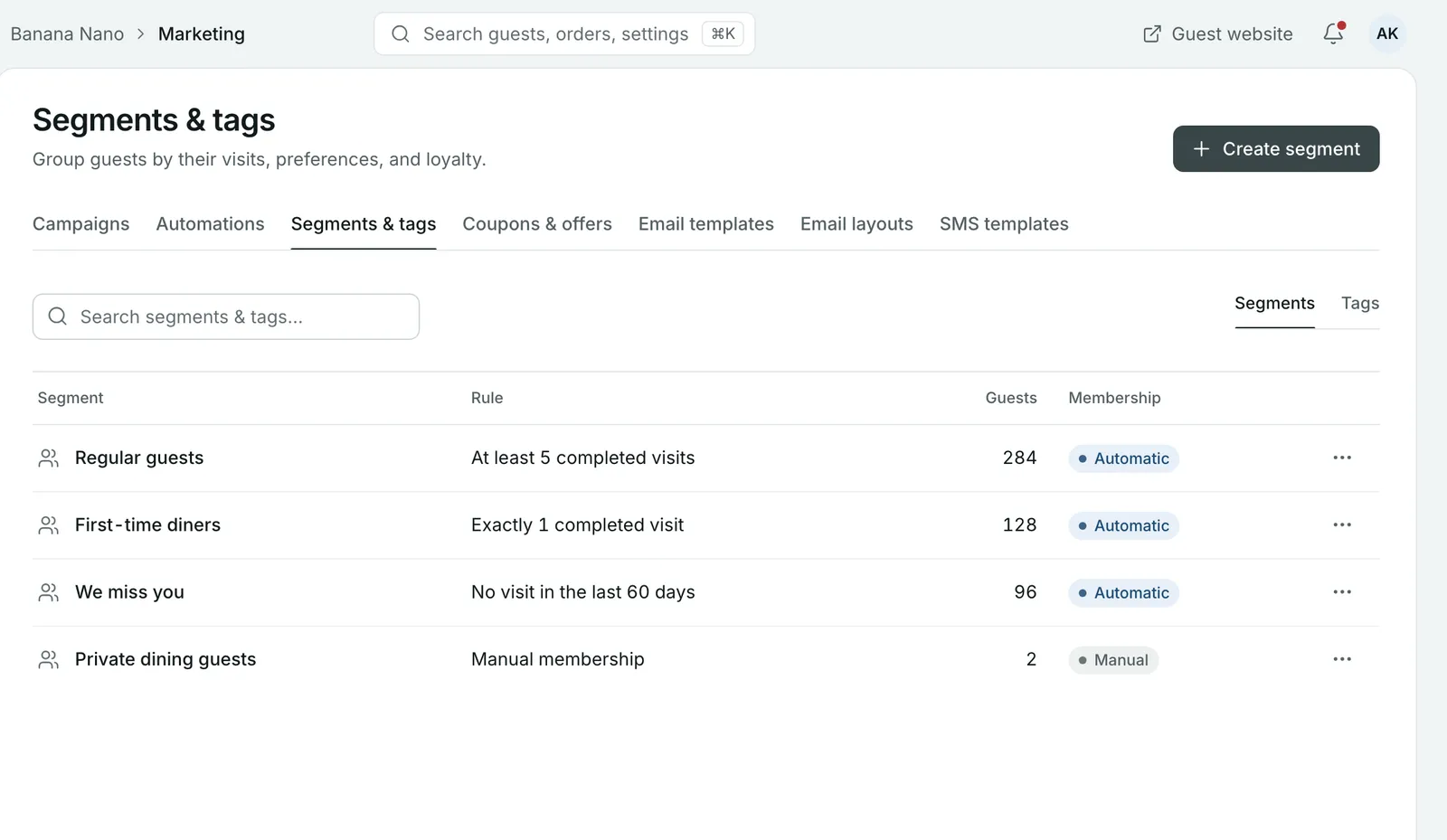
There are two kinds:
- Automatic: guests join and leave based on a rule, such as At least 5 completed visits or No visit in the last 60 days. These keep themselves up to date.
- Manual: you choose the members, for example private dining guests.
Select Create segment to make one. To add guests to a manual segment, tick them in the guest list and choose Add to segment, or use Add to segment on a profile.
Tip: Start with three segments: regulars, first-timers and guests you haven’t seen for a while. Each one gets its own message: a thank you, a reason to come again and a “we miss you”.
Restrict or remove a guest
At the bottom of a profile, under Restrict or remove:
- Blacklist guest flags every booking from them to your staff and leaves them out of campaigns and automations.
- Delete guest removes them. This can’t be reversed from here.
Common questions
Where do guest profiles come from?
Growtality builds them from bookings and online orders, so you don't have to enter guests by hand. You can also add a guest yourself with Add guest.
What's the difference between a tag and a segment?
A tag is a label you put on a guest, like VIP or Walk-in. A segment is a group of guests, either worked out automatically from a rule such as at least 5 completed visits, or chosen by hand.
Who can see internal notes?
Only your team. Guests never see internal notes.
What does blacklisting a guest do?
It flags every booking from that guest to your staff, and leaves them out of your campaigns and automations.
Can I export my guest list?
Yes. Select Export on the Guests page.
Still stuck? Submit a ticket
Tell us what you're trying to do. We'll attach this guide to your ticket, so you don't have to explain it twice.