
How to manage restaurant reservations during a busy service
Approve, seat and close bookings from one list, add phone bookings and walk-ins, move tables and deal with no-shows without slowing the door.
At 7 pm the door doesn’t wait. Guests arrive, the phone rings and someone wants to move from inside to the terrace. The Reservations page keeps every booking for the day in one list, so the host can see what’s next at a glance.
Read the day at a glance
Open Reservations from the sidebar. The number beside it shows bookings waiting for approval.
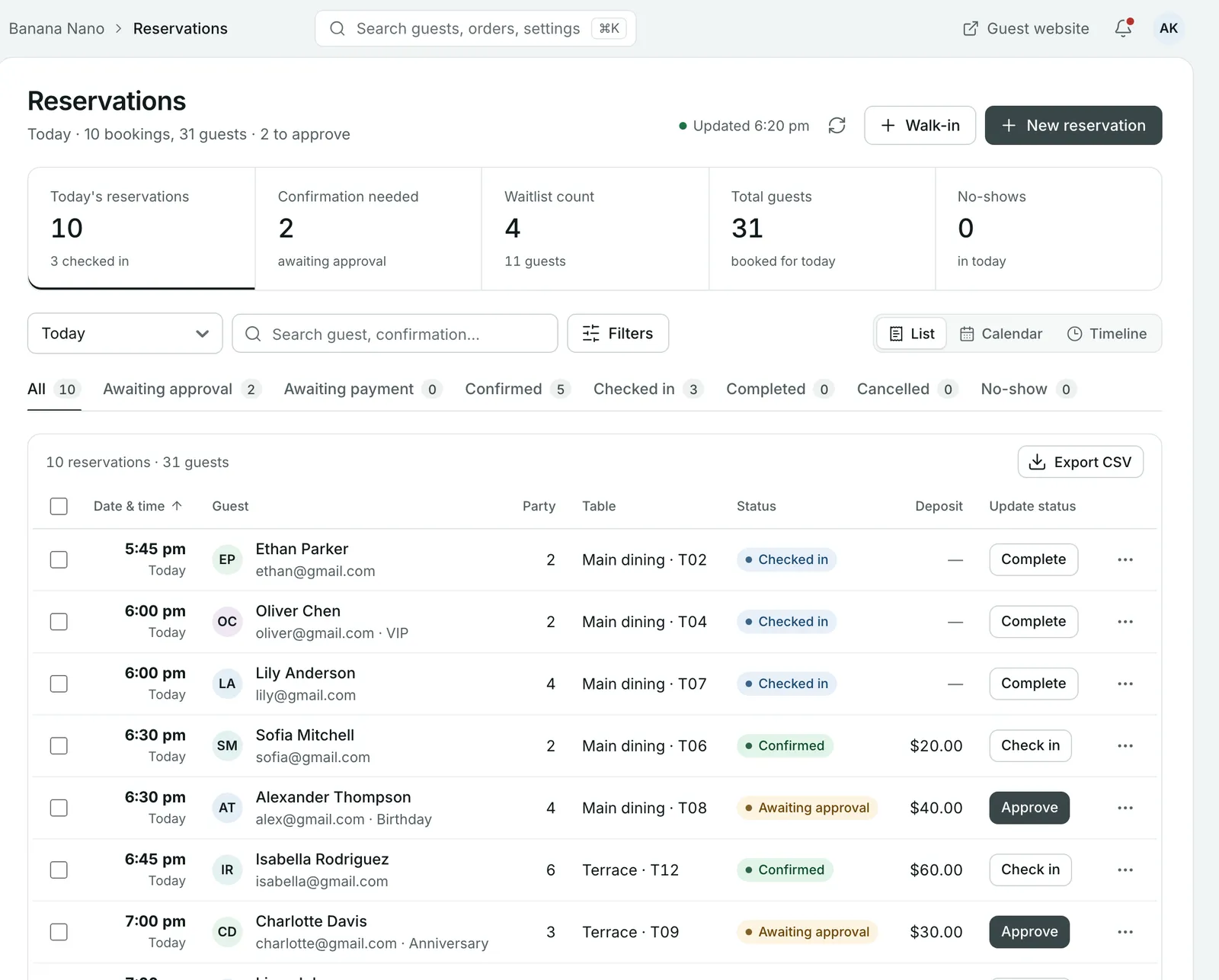
The cards at the top show:
- Today’s reservations, and how many are checked in
- Confirmation needed: bookings awaiting approval
- Waitlist count
- Total guests booked for today
- No-shows so far
Below them, the status tabs (All, Awaiting approval, Confirmed, Checked in and the rest) filter the list. Use the search box to find a guest or a confirmation number.
Choose a view
- List is the quickest way to work through the day.
- Calendar shows bookings by day across the month.
- Timeline shows bookings by table. Drag a booking to move it, or click an empty slot to book it. Each booking holds its table for 90 minutes.
Move each booking to its next step
The Update status button on each row shows the next step:
| Status | Button | When to press it |
|---|---|---|
| Awaiting approval | Approve | You’re happy to take the booking. |
| Confirmed | Check in | The guest has arrived and is seated. |
| Checked in | Complete | The table has paid and left. |
To approve several bookings at once, tick them and approve them together.
Add a phone booking
- Select New reservation.
- Choose the Date, Party size and Time.
- Add the guest’s first and last name, phone number and, if you have it, their email.
- Leave Table assignment on Auto-assign, or pick a table.
- Add Special requests the guest asked for, and Internal notes for your team. Internal notes aren’t visible to the guest.
- Select Create reservation.
Bookings you add are confirmed straight away. If the time slot is full, the form tells you, and submitting adds the guest to the waitlist instead.
For guests who arrive without a booking, select Walk-in. See How to manage walk-ins and your waitlist.
Open a booking for the full picture
Select a guest to open their booking. You’ll see:
- party size, date, time, table, source and any occasion
- special requests and dietary notes
- how many times they’ve booked before, their no-shows and their lifetime spend, and whether they’re a VIP
- the deposit and its payment status
- internal notes from your team
From here you can edit the booking, move it to another table, cancel it or mark it as a no-show. When you save changes, the guest is emailed the new details.
Handle cancellations and no-shows
- Cancel: the guest is emailed that their booking is cancelled.
- No-show: use this when a guest doesn’t arrive. It counts against the guest’s record, and a saved card may be charged your no-show fee. See How to take booking deposits and cut no-shows.
Both ask you to confirm first, so a stray tap won’t cancel anyone.
Export the day’s bookings
Select Export CSV to download the bookings in the current view, for example to print a list for the door.
Common questions
What do the reservation statuses mean?
Awaiting approval needs a team member to approve it. Awaiting payment is waiting for the deposit. Confirmed is booked. Checked in means the guest is seated. Completed means they've left. A booking can also be Cancelled, Auto-cancelled or a No-show.
What happens when I add a booking for a full time slot?
The form warns you that the slot is full. Submitting adds the guest to the waitlist instead of creating a reservation.
Does the guest hear about changes I make?
Yes. When you edit a reservation, the guest is emailed the changes. When you cancel one, they're emailed that it's cancelled.
Can I approve several bookings at once?
Yes. Tick the bookings in the list, or tick the box at the top to select all, then approve or cancel them together.
Can I see who's booked on a particular table?
Open Tables & floor plan and select the table. You'll see who's booked on it tonight and can change its status.
Still stuck? Submit a ticket
Tell us what you're trying to do. We'll attach this guide to your ticket, so you don't have to explain it twice.