
How to manage walk-ins and a restaurant waitlist
Add walk-ins in seconds, text guests when their table is ready and seat them at the right free table, so nobody gives up and walks out.
A guest told “about 20 minutes” who then waits 40 doesn’t come back. The Waitlist page keeps everyone waiting in arrival order, shows how long each party has waited, and tells you when a free table fits them.
See who’s waiting
Open Waitlist from the sidebar. The cards at the top show Free tables, Parties waiting, Guests waiting, Longest wait and Quoted wait. The line under the page title tells you how many waiting parties fit a free table right now.
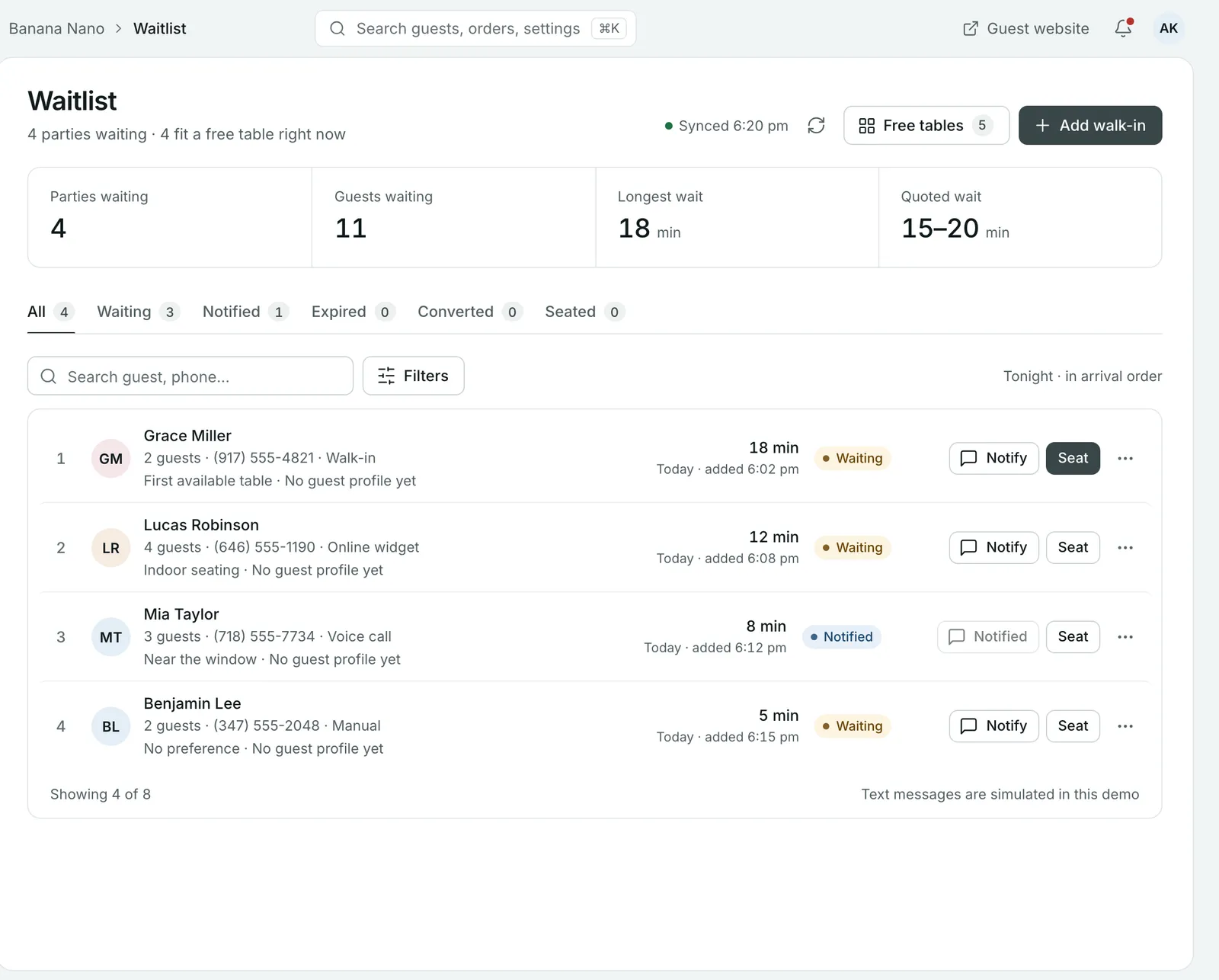
Each party in the queue shows its position, party size, phone number, where the entry came from, any seating preference and how long it has waited.
Step 1: Add a walk-in
- Select Add walk-in.
- Enter the guest’s first and last name, phone number and Party size.
- Add a Preferred time and any Special requests, such as “Near the window”.
- Save. The party joins the end of the queue as Waiting.
Take a phone number for every party. It’s how you text them when their table is ready.
Step 2: Text the guest when a table frees up
Select Notify, then Send notification. The guest gets a text that their table is ready, and the entry moves to Notified. Guests can wait at the bar or nearby instead of crowding the door.
Step 3: Seat the party
Select Seat. Growtality lists the free tables that fit the party, with their seats and room. Pick one and confirm. The entry moves to Seated.
If no free table fits yet, the dialog says so. Notify the guest when one opens.
When plans change
From the actions on an entry, or from its details page:
- Convert to reservation: books the party a confirmed table at their preferred time.
- Mark as expired: for a party that gave up and left. They leave the queue.
- Remove: deletes the entry, for example if it was added by mistake.
Use the status tabs (Waiting, Notified, Expired, Converted, Seated) to look back over the night.
Tip: Keep your quoted waits honest. Longest wait shows how long the first party in the queue has actually waited, so compare it with what you’re telling guests at the door.
Seat a walk-in straight away
If you have a free table and nobody’s waiting, there’s no need for the waitlist. Go to Tables & floor plan and select Seat walk-in, or use Walk-in on the Today or Reservations page.
Common questions
How do guests know their table is ready?
Select Notify on their waitlist entry, then Send notification. They get a text saying their table is ready, and the entry moves to Notified.
What if a guest leaves before we seat them?
Open the entry and select Mark as expired. They leave the queue, and the entry stays in the Expired tab.
Can a waitlist guest book for later instead?
Yes. Choose Convert to reservation from the entry's actions. Growtality creates a confirmed booking at their preferred time, or the next free time if they wanted a table as soon as possible.
Can guests join the waitlist online?
Yes. Entries can come from your online booking widget as well as walk-ins, phone calls and entries your team adds, and each one shows its source. When you add a booking for a slot that's full, that guest goes on the waitlist too.
Still stuck? Submit a ticket
Tell us what you're trying to do. We'll attach this guide to your ticket, so you don't have to explain it twice.