
How to set up online table bookings for your restaurant
Set party sizes, time slots, booking windows and cancellation rules so guests can book a table online at any hour without overbooking your floor.
A guest who wants to book at 11 pm won’t phone the next morning. They’ll book somewhere else. Online bookings fill tables while you’re closed. Your rules decide which bookings come in, so the diary never takes more than the kitchen and floor can handle.
Bookings come in through a booking widget. This guide sets one up from start to finish.
Before you start
- Lay out your rooms and tables first. Guests can only book tables that exist in Settings > Rooms. See How to set up your restaurant floor plan.
- Decide your largest party size online, how far ahead guests can book and how late they can cancel.
Step 1: Open your booking widget
- Go to Settings > Business setup > Booking. You’ll see the Booking widget list.
- Open Main booking widget, or select Create booking widget to start a new one.
The widget has five tabs: Basic info, Booking rules, Booking form, Confirmation & security and Cancellation policy. Your changes apply to the location named at the bottom of the settings menu.
Step 2: Name it and add photos
On Basic info, give the widget a Booking widget name your team will recognise. Add Featured images of your dining room or signature dishes. Guests see them on the booking page, and you can drag them to change the order.
The widget uses your restaurant’s colours and logo. To give this widget its own look, turn on Customize branding for this widget under Custom branding.
Step 3: Set your booking rules
Open Booking rules. These settings decide which bookings guests can make.
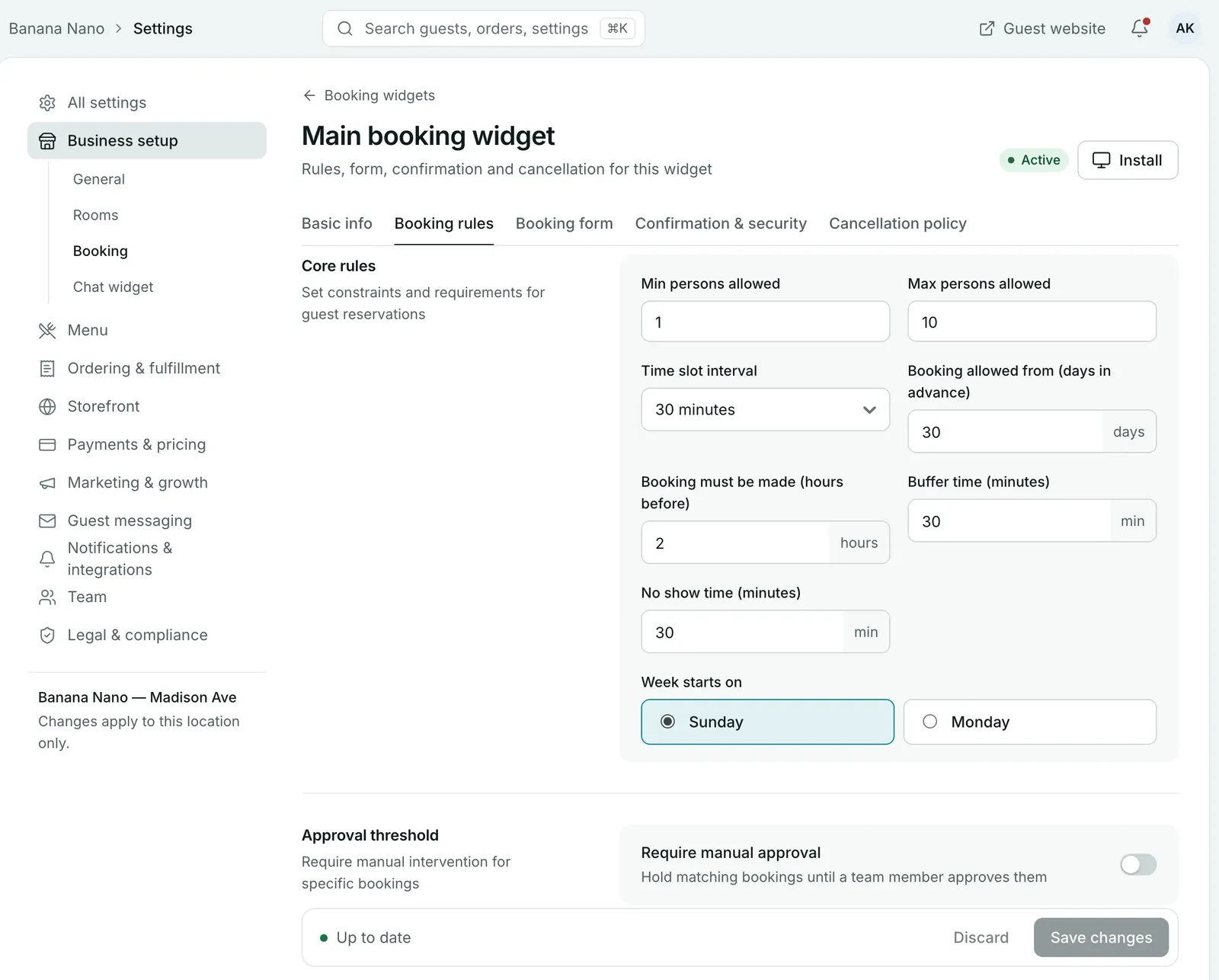
| Setting | What it controls | Example |
|---|---|---|
| Min persons allowed / Max persons allowed | The party sizes guests can book online | 1 to 10 |
| Time slot interval | How often booking times are offered | Every 30 minutes |
| Booking allowed from (days in advance) | How far ahead guests can book | 30 days |
| Booking must be made (hours before) | The latest a guest can book before the time they want | 2 hours |
| Buffer time (minutes) | Time kept free between bookings on a table, for clearing and resetting | 30 minutes |
| No show time (minutes) | How long after the booking time a guest who hasn’t arrived counts as a no-show | 30 minutes |
| Week starts on | The first day of the week on the booking calendar | Monday |
Tip: A buffer that’s too short gives your team no time to reset tables on a busy night, and one that’s too long leaves tables empty. Start at 15 to 30 minutes and adjust after a few services.
Step 4: Decide which bookings need your approval
Some bookings are worth checking before you confirm them, like a party of twelve on a Saturday. Under Approval threshold:
- Turn on Require manual approval.
- Set Party size above, for example 6 persons.
- Under Apply rule for, choose All bookings, Weekend bookings or Special seating areas. If you pick special seating, choose the rooms it applies to.
- Set Auto-cancel if not approved within, so a guest isn’t left waiting if nobody approves their booking in time.
Bookings that need approval appear as Awaiting approval on the Reservations page until someone selects Approve.
Step 5: Choose what guests are asked
Open Booking form. Name, email, phone number, party size, date and time are always asked for. You can also:
- tick Ask for an occasion (Birthday, Anniversary, etc.), so your team knows when to bring a candle
- tick Ask for number of children / infants, so high chairs are ready
- add your own questions under Custom fields, such as dietary requirements, as text, dropdown, checkbox or radio fields, and make them required if you need the answer
Under Marketing consent, write the labels guests see beside the email and SMS opt-in boxes. Guests who tick them can receive your campaigns later.
Step 6: Confirmation and spam protection
On Confirmation & security:
- Turn on Enable reCAPTCHA and add your site key and secret key if you’re getting spam bookings.
- Add a Redirect URL to send guests to your own thank-you page after they book.
- Add Terms & conditions, which appear on the booking confirmation page.
Step 7: Set your cancellation policy
On Cancellation policy:
- Leave Cancellation allowed on if guests can cancel their own booking.
- Set the Cancellation window, in hours before the reservation. Guests who cancel before it get a full refund of any deposit. After it, there’s no refund.
- Turn on Allow booking modifications so guests can change their own booking, and Approval required if you want to check changes first.
Select Save changes.
Step 8: Put the widget where guests will find it
Select Install at the top of the widget to get your booking link and website code. See How to add booking and online ordering to your website and Google.
Common questions
What's the largest party guests can book online?
You decide. On the Booking rules tab, set Max persons allowed. Larger groups can't book online and will need to contact you, and you can still add their booking yourself.
How do I stop last-minute bookings?
Set Booking must be made (hours before). With 2 hours, a guest can't book a 7 pm table after 5 pm.
Can I approve large bookings before they're confirmed?
Yes. Turn on Require manual approval, then set Party size above. Bookings that match wait for a team member to approve them, and you can set them to cancel automatically if nobody approves them in time.
Can I have more than one booking widget?
Yes. You might keep one for your main dining room and another for private dining requests. Each widget has its own rules, form and cancellation policy, and you can set each one to Active or Inactive.
Can guests cancel their own booking?
Only if Cancellation allowed is on. Guests can cancel up to the number of hours you set. Cancelling before the deadline gets a full refund of any deposit; cancelling after it gets no refund.
Still stuck? Submit a ticket
Tell us what you're trying to do. We'll attach this guide to your ticket, so you don't have to explain it twice.