
How to take booking deposits and cut restaurant no-shows
Ask for a deposit or a card when guests book, so an empty table on a busy night isn't money lost. Flat fees, party size tiers and weekend deposits.
A party of six that doesn’t turn up on a Saturday costs you a full table of covers you could have sold. A deposit, or a card saved at booking, makes guests far more likely to cancel properly and gives you something back when they don’t.
Before you start
Connect a payment gateway first. Deposits are taken through Stripe or PayPal. See How to connect payments and set up taxes.
Step 1: Open deposit settings
Go to Settings > Payments & pricing > Payment configuration and open the Deposit configuration tab.
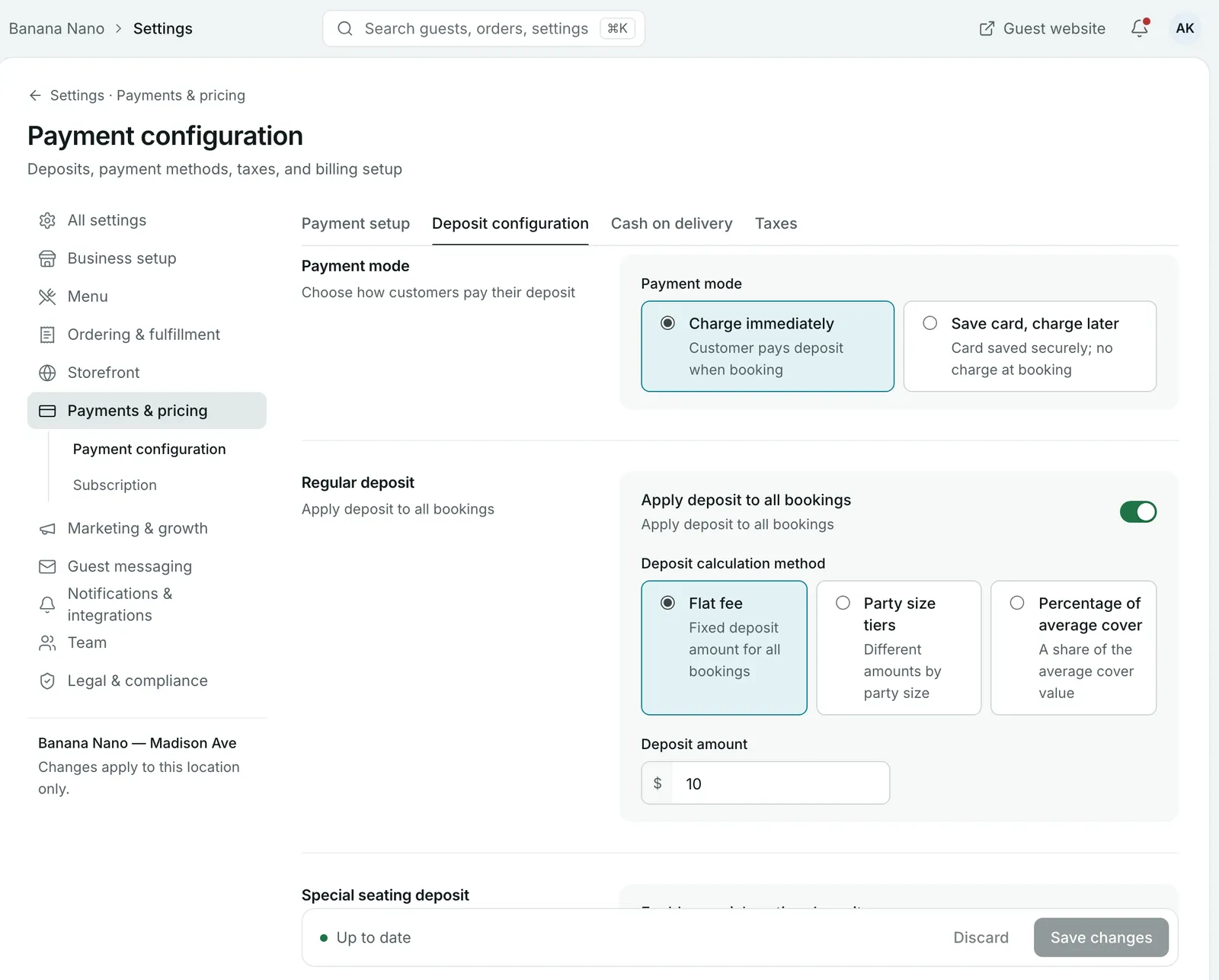
Step 2: Choose how guests pay
Under Payment mode, pick one:
- Charge immediately: the guest pays the deposit when they book.
- Save card, charge later: the card is saved securely, with no charge at booking.
If you save cards, choose a Charge policy:
| Charge policy | What happens |
|---|---|
| Charge before reservation | The card is charged automatically a set number of days before the booking (1 to 7). |
| Charge on no-show / late cancel | Nothing is charged unless something goes wrong. |
Then decide whether to turn on Charge on no-show and Charge on late cancellation. A late cancellation is one made after the deadline in your booking widget’s cancellation policy.
Step 3: Set the deposit amount
Under Regular deposit, leave Apply deposit to all bookings on and choose a Deposit calculation method:
- Flat fee: the same amount for every booking.
- Party size tiers: a different amount for each range of party sizes, up to four tiers. For example, one amount for 1 to 4 guests and a higher one for 5 to 8.
- Percentage of average cover: a share of the average cover value you set in General > Location details.
Step 4: Add extra deposits for busy times or special tables
Two more deposits can be added on top of the regular one:
- Special seating deposit: for special seating areas, such as a terrace or private room.
- Weekend deposit: for weekend bookings.
Turn on the ones you want and set their amounts.
Step 5: Check the preview and save
Live calculation preview shows what a party pays under your rules for a regular booking, a special seating booking and a weekend booking. Check it looks right, then select Save changes.
Managing deposits on a booking
Open any booking from Reservations to see its deposit. From there you can:
- select Charge card to charge a saved card now
- select Waive deposit to cancel the deposit for that guest, for example a regular you trust
When you mark a guest as a no-show, a saved card may be charged the no-show fee, depending on your charge policy.
Tip: Tell guests about your deposit in your booking widget’s Terms & conditions, so it doesn’t come as a surprise. See How to set up online table bookings.
Common questions
Should I charge the deposit straight away or save the card?
Charge immediately takes the deposit when the guest books. Save card, charge later stores the card and only charges it before the booking or when something goes wrong, such as a no-show or late cancellation. Saving the card puts fewer guests off booking.
Can I charge more for larger parties?
Yes. Choose Party size tiers as the deposit calculation method and set an amount for each range of party sizes, up to four tiers.
Can I charge a deposit only at weekends?
Yes. Turn on Enable weekend deposit. It's added for weekend bookings. You can also turn off Apply deposit to all bookings if you only want weekend or special seating deposits.
Can I waive a deposit for one guest?
Yes. Open the booking on the Reservations page and select Waive deposit. The card won't be charged.
What happens if a saved card can't be charged?
Growtality tries again. Under Retry settings, choose how many times it retries (1 to 5) and how many hours it waits between tries (1 to 48).
Still stuck? Submit a ticket
Tell us what you're trying to do. We'll attach this guide to your ticket, so you don't have to explain it twice.