
How to connect payments and set up taxes for online orders and deposits
Connect Stripe or PayPal to take card, Apple Pay and Google Pay payments, test it safely, set your tax rate and decide whether to accept cash on delivery.
Guests can’t pay for online orders or booking deposits until a payment provider is connected. Payments go through your own Stripe or PayPal account, so you can see every one there.
Everything here is in Settings > Payments & pricing > Payment configuration. Changes apply to the location named in the settings menu.
Step 1: Connect Stripe or PayPal
Open the Payment setup tab.
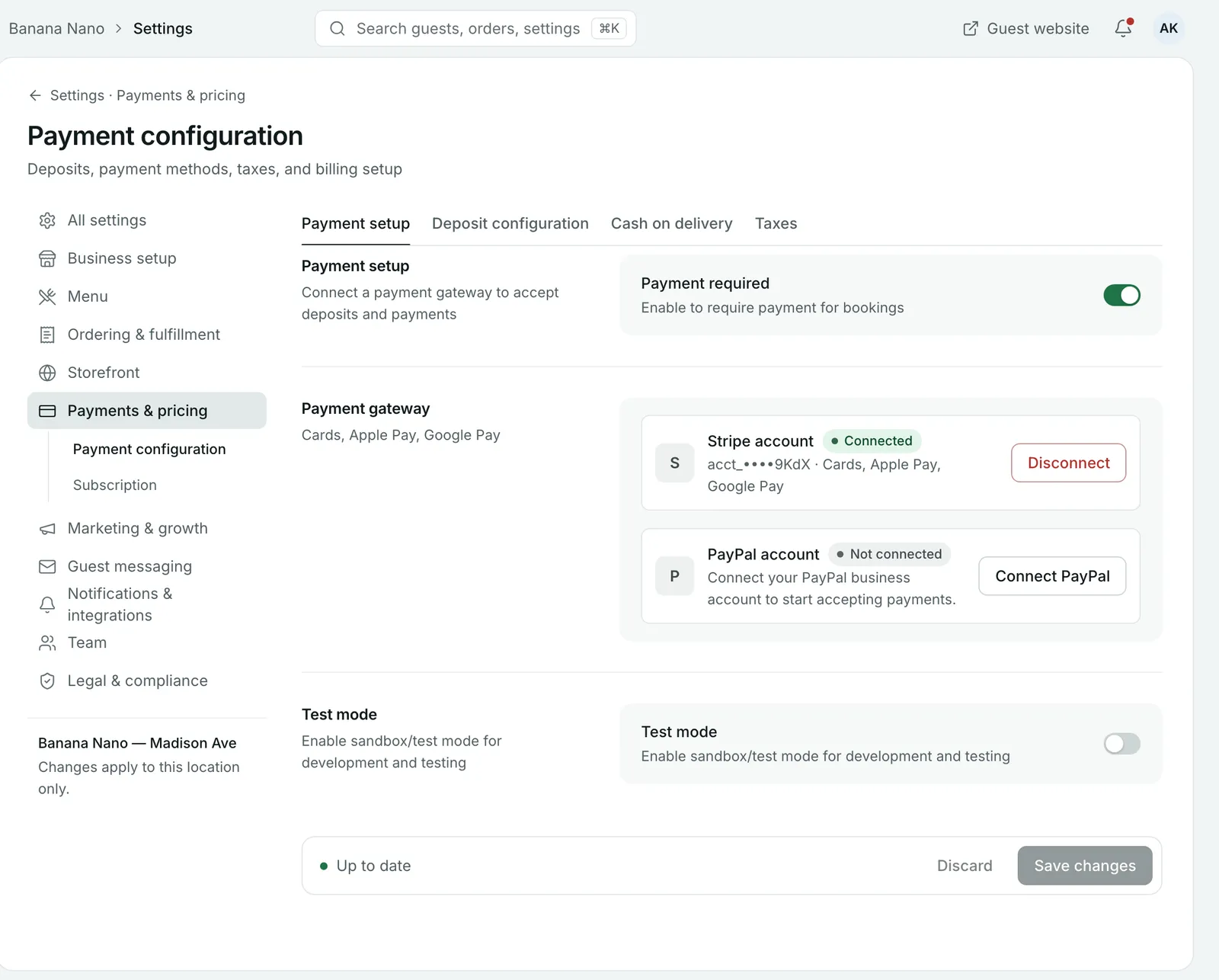
- Under Payment gateway, connect your Stripe account, your PayPal business account, or both. Stripe takes cards, Apple Pay and Google Pay.
- For PayPal, select Connect PayPal and follow the steps.
- When it’s done, the account shows as Connected. You can disconnect it here too.
Leave Payment required on if guests must pay when they book.
Step 2: Test before you go live
Turn on Test mode and place a test order and a test booking with a deposit. Check the payment arrives in your Stripe or PayPal account as a test payment.
Turn Test mode off again before you share your ordering and booking pages. Select Save changes.
Step 3: Set your tax rate
Open the Taxes tab.
- Leave Enable tax on to apply tax to all orders.
- Enter your Tax rate (%).
- Choose Price display:
- Tax exclusive: tax is added at checkout.
- Tax inclusive: your prices already include tax.
- Check the Checkout preview, then select Save changes.
If you’re not sure which rate or display to use, check with your accountant.
Step 4: Decide on cash on delivery
Open the Cash on delivery tab if you want guests to pay cash when their order arrives.
- Turn on Cash on delivery enabled.
- Under Eligible fulfillment types, tick Delivery, Pickup or both.
- Optionally, set a Minimum order amount and Maximum order amount for cash orders. Leave them blank for no limit.
- Optionally, add a Cash on delivery fee.
Drivers hand in cash at the end of their shift. See How to deliver orders with your own drivers.
Step 5: Set up deposits
The Deposit configuration tab is where you choose deposits for bookings. See How to take booking deposits and cut no-shows.
Your Growtality plan and billing
Your own plan is under Settings > Payments & pricing > Subscription. There you can see your current plan and next billing date, Change plan, View invoices, Manage billing and update the card your plan is charged to. It also shows how many marketing emails you’ve sent this month.
Only the owner can manage the plan and billing. There’s no contract.
Common questions
Which payment providers can I use?
Stripe and PayPal. Stripe takes cards, Apple Pay and Google Pay.
Can I test payments without charging real cards?
Yes. Turn on Test mode on the Payment setup tab. Turn it off before you take real orders and deposits.
Should my prices include tax?
That's your choice. Tax inclusive means your menu prices already include tax. Tax exclusive adds tax at checkout. The Checkout preview shows how an order totals up either way.
Can guests pay cash for delivery?
Yes, if you turn on Cash on delivery enabled. Choose whether it's allowed for delivery, pickup or both, and set a minimum, a maximum or an extra fee for cash orders if you want.
Where do I see my Growtality plan and invoices?
Go to Settings > Payments & pricing > Subscription. Only the owner can manage the plan and billing.
Still stuck? Submit a ticket
Tell us what you're trying to do. We'll attach this guide to your ticket, so you don't have to explain it twice.