
How to deliver orders with your own drivers
Add your drivers, dispatch ready orders, track every delivery live and check cash on delivery at the end of the shift, without paying a delivery app.
Delivery apps take a large share of every order. With your own drivers, you keep the fee and the relationship with the guest. The Delivery page shows every delivery order from the kitchen to the door, so you always know where an order is.
Step 1: Turn on in-house delivery
- Go to Settings > Ordering & fulfillment > Delivery.
- Turn on Enable in house delivery.
- Under Driver app controls, set:
- Max batch size: the most orders a driver can claim at once (1 to 20).
- Failed-delivery wait timer: how many minutes a driver waits at the door before escalating (5 to 7).
Step 2: Add your drivers
Under Delivery agents, add each driver with their Full name, Email address and Mobile number. The driver signs in to the driver app with that email.
Leave Active on for drivers who are working for you. Switch it off when someone leaves: inactive agents can’t sign in.
Select Save changes.
Step 3: Follow orders on the delivery board
Open Delivery from the sidebar. The cards at the top show Active orders, Out for delivery, Delivered today, Returned today and COD today (cash on delivery collected).
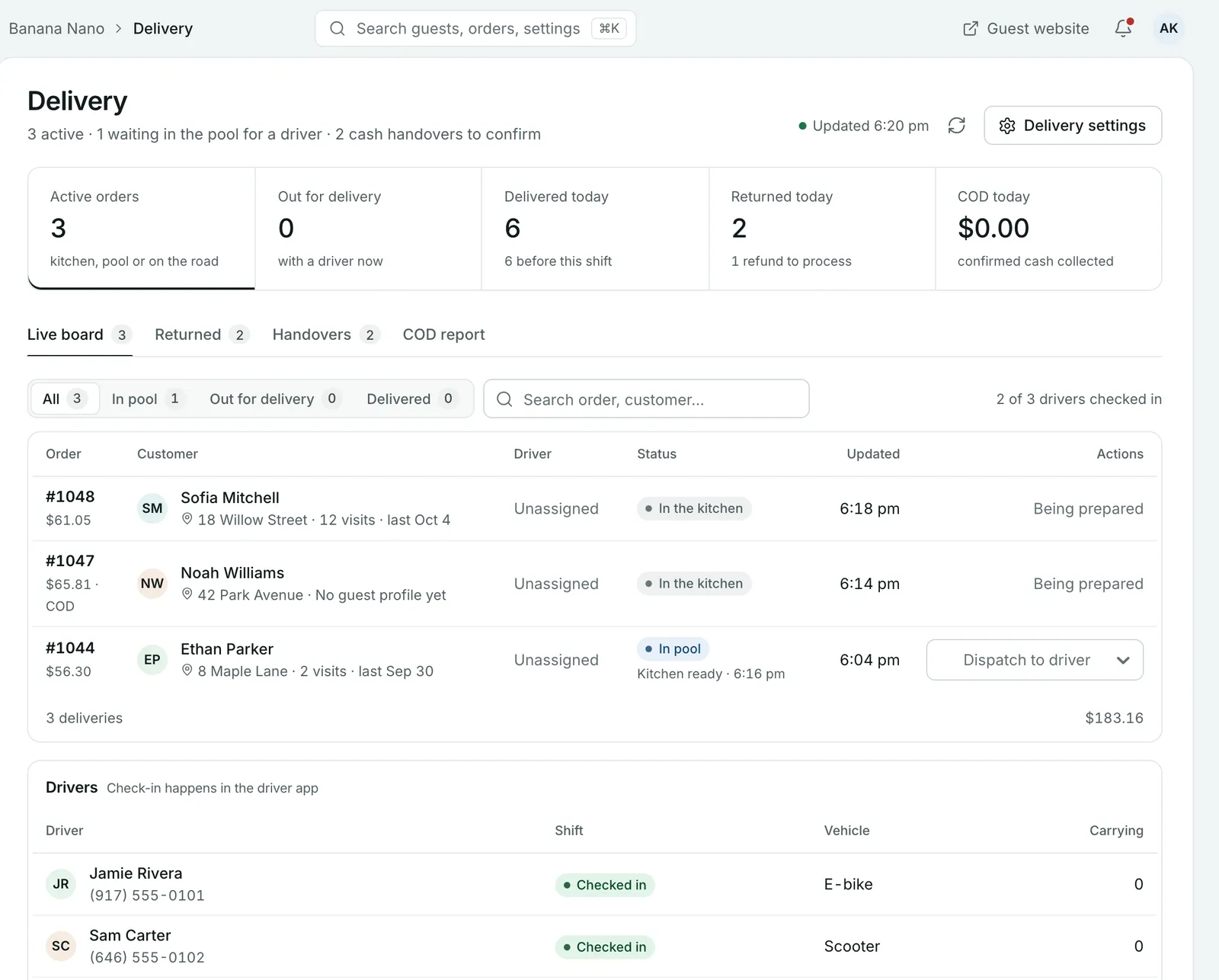
The Live board tab lists every active delivery order with the customer, address, driver and status. Filter it with In pool, Out for delivery and Delivered. A line above the list shows how many drivers have checked in.
An order moves through these stages:
- In the kitchen: it’s being prepared. Accept and prepare it on the Orders page as usual. See How to accept and hand over online orders during service.
- In pool: the kitchen has marked it ready and it’s waiting for a driver.
- Out for delivery: a driver has it.
- Delivered: it’s at the door. Select View proof to see the driver’s photo and delivery time.
Step 4: Dispatch an order to a driver
When an order is in the pool, choose a driver from Dispatch to driver on its row. Only drivers who’ve checked in on the driver app appear. The order moves to Out for delivery.
Step 5: Deal with returned orders
If a driver can’t deliver an order, it comes back to the restaurant and appears on the Returned tab for follow-up. Select Refund to refund the guest.
Step 6: Check cash at the end of the shift
If you accept cash on delivery, drivers hand the cash in at the end of their shift.
- Open the Handovers tab.
- Check the amount against what the driver gives you, then select Confirm receipt.
- Use the COD report tab to see confirmed cash collections by driver and date, and export them.
To accept cash on delivery, turn it on in Settings > Payments & pricing > Payment configuration > Cash on delivery. See How to connect payments and set up taxes.
Common questions
How do drivers sign in?
Each driver signs in to the driver app with the email address you added for them. Drivers set to inactive can't sign in.
Why can't I dispatch an order to a driver?
You can only dispatch to drivers who have checked in. Drivers check in from the driver app at the start of their shift.
Can a driver take several orders at once?
Yes. Set Max batch size in Driver app controls. It's the most orders a driver can claim at once, from 1 to 20.
How do I know an order was delivered?
Delivered orders show View proof on the delivery board, with the photo the driver took and when it was delivered.
What happens to orders that come back to the restaurant?
They appear on the Returned tab for follow-up, where you can process a refund.
Still stuck? Submit a ticket
Tell us what you're trying to do. We'll attach this guide to your ticket, so you don't have to explain it twice.