
How to set up QR code ordering at your tables
Let guests scan, order and add to their order from the table. Set up your QR code, choose how orders are accepted and print table stands.
When the room is full, guests waiting to order a second round is money left on the table. QR ordering lets guests scan a code at their table, browse your menu and order when they’re ready. Their orders arrive on the same Orders board as your pickup and delivery orders.
Before you start
Your menu needs to be live. See How to set up your menu for online ordering.
Step 1: Turn on dine-in ordering
- Go to Settings > Ordering & fulfillment > Dine-in ordering.
- Turn on Enable dine-in ordering.
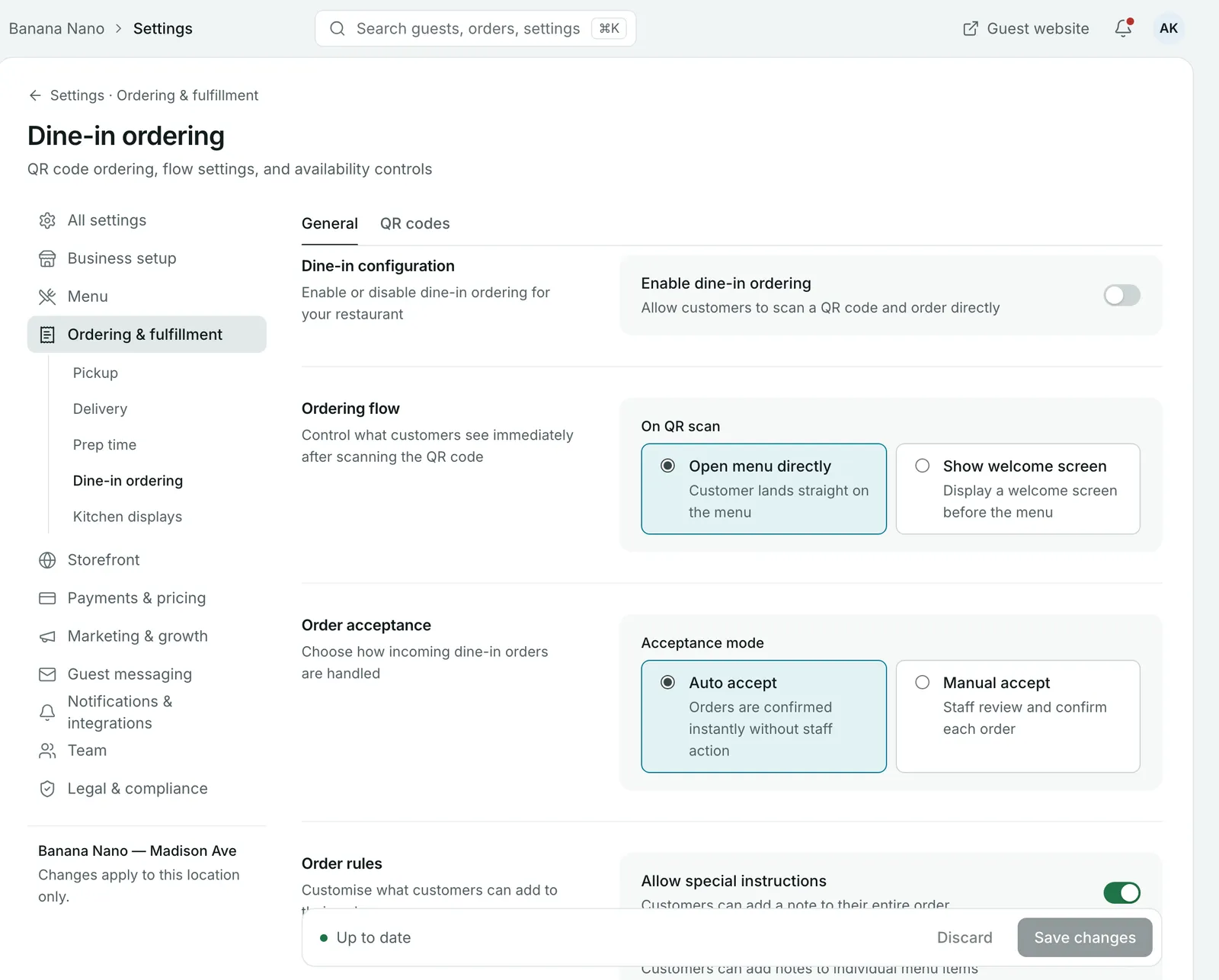
Step 2: Choose what guests see first
Under Ordering flow, set On QR scan to:
- Open menu directly, to take guests straight to the menu, or
- Show welcome screen, to greet them before the menu.
Step 3: Decide how orders are accepted
Under Order acceptance, choose an Acceptance mode:
| Mode | What happens | Best for |
|---|---|---|
| Auto accept | Orders are confirmed instantly, with no staff action. | Busy rooms with a simple menu |
| Manual accept | Staff review and confirm each order. | When you want to check orders before the kitchen starts |
With manual accept, dine-in orders wait in Pending on the Orders board until someone accepts them.
Step 4: Set your order rules
Under Order rules, turn on:
- Allow special instructions, so guests can add a note to their whole order
- Allow item notes, so guests can add a note to a single dish, like “no onions”
Select Save changes.
Step 5: Print your QR code
- Under QR customisation, turn on Include restaurant logo if you want it on the printouts, and edit the Scan prompt text shown under the code. “Scan to Order” is the default.
- Check Print previews to see how the code looks on printed materials.
- Select Download QR to save the code, or Print QR to print table stands.
Put a code on every table, where guests can see it without moving the menu or the candle.
Careful: Regenerate creates a new code, and every printed code stops working straight away. Only use it if you need to, and reprint every table stand afterwards.
During service
Dine-in orders arrive on the Orders board with your other orders. When the food reaches the table, select Mark served to complete the order. See How to accept and hand over online orders during service.
If the kitchen needs a break, turn on Pause dine-in ordering under Availability controls. Turn it off again when you’re ready.
Common questions
Do dine-in orders need a member of staff to accept them?
That's your choice. Under Order acceptance, Auto accept confirms orders instantly, and Manual accept lets staff review and confirm each one.
How do I stop QR orders for a while?
Turn on Pause dine-in ordering under Availability controls. It turns off all dine-in QR ordering until you switch it back.
What happens if I regenerate my QR code?
Printed codes stop working straight away. Reprint every table stand and poster afterwards.
Can guests leave notes for the kitchen?
Yes. Allow special instructions lets guests add a note to their whole order, and Allow item notes lets them add a note to a single dish.
Still stuck? Submit a ticket
Tell us what you're trying to do. We'll attach this guide to your ticket, so you don't have to explain it twice.