
How to accept and hand over online orders during service
Run a busy service from one screen: hear new orders, accept them in time, move them through the kitchen and hand them over for pickup, dine-in or delivery.
On a busy night, an order nobody accepts is a guest waiting on hold, and an order left on the pass is food going cold. The Orders page puts every online order on one board, so the whole team can see what needs doing next.
Turn on order alerts before service
- Open Orders from the sidebar. A number next to it shows how many orders are waiting.
- Check the bell next to Live at the top of the page is switched on, so new orders play a sound.
- Select Test new-order alert to hear it. A sample pickup order appears, so you can check the volume on the device at the pass.
Keep the Orders page open on a screen the team can see and hear during service.
How the order board works
Orders move left to right through four columns:
| Column | What it means | Your next action |
|---|---|---|
| Pending | A new order. Accept within 5 minutes. | Accept |
| In preparation | Cooking now. | Mark ready |
| Ready | Waiting for pickup, a server or a driver. | Hand it over (see below) |
| Completed | Handed over today. | Nothing |
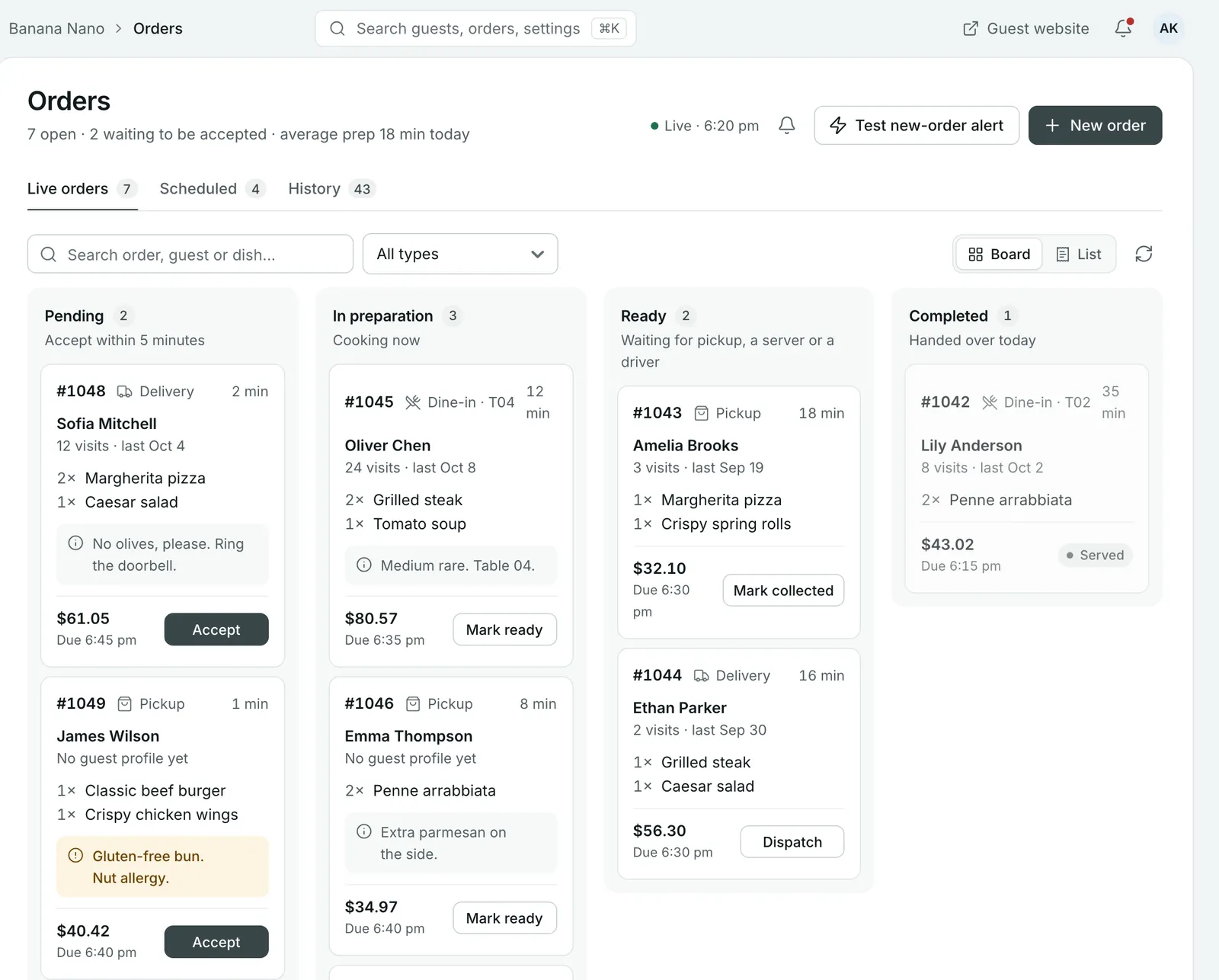 Each ticket shows the order number, type, how long it has waited, the items, any guest notes, the total and when it’s due.
Step 1: Accept new orders
New orders land in Pending. Read the items and any guest note on the ticket, such as “Gluten-free bun”, then select Accept. The order moves to In preparation.
The timer on a ticket is highlighted once an order has waited 5 minutes. If you can’t make an order, open it and reject it rather than leaving it waiting (see Reject or cancel an order).
Step 2: Mark orders ready
When the food is on the pass, select Mark ready. The order moves to Ready, which tells front of house and drivers it’s waiting for them.
Step 3: Hand the order over
The button on a ready ticket depends on the order type:
| Order type | Button | What happens |
|---|---|---|
| Pickup | Mark collected | The order is completed when the guest picks it up. |
| Dine-in | Mark served | The order is completed once it reaches the table. |
| Delivery | Dispatch | The order goes out for delivery. Follow it on the Delivery page until it’s delivered. See How to deliver orders with your own drivers. |
Open an order for the full details
Select any ticket to open the order. You’ll see:
- the order’s progress, from placed to handed over
- the guest’s name, phone and email, with a link to their profile if they’ve ordered or booked before
- the order type, due time, and the address and driver for deliveries
- prices, payment method and payment status
- the guest’s note, and internal notes your team can add
The main button at the bottom moves the order to its next step, the same as the button on the ticket.
Reject or cancel an order
- Reject is for a new order you can’t make, for example if a dish has sold out. Open the order, select Reject, add a reason if you want to and select Confirm rejection. If the guest paid by card, they’re refunded.
- Cancel order is for an order you’ve already accepted. The guest is refunded and told by email, and it can’t be undone.
Tip: If a dish runs out mid-service, set it to Sold in your menu so no more orders come in for it. See How to set up your menu for online ordering.
Scheduled orders and history
- The Scheduled tab holds orders placed for later. A scheduled order is held until its release time. Before then you can only reject it.
- The History tab lists finished orders. Use the search box to find an order by number, guest or dish.
To see orders as rows instead of columns, switch from Board to List. Use the All types menu to show only pickup, delivery or dine-in orders.
Add an order taken by phone
Select New order at the top of the page and enter the details. It joins the board with your online orders, so the kitchen works from one list.
Common questions
How quickly do I need to accept an order?
New orders wait in the Pending column, which asks you to accept within 5 minutes. A ticket's timer is highlighted once it has waited 5 minutes, so late orders stand out.
What happens when I reject an order?
Open the order, select Reject, add a reason if you want to and select Confirm rejection. If the guest paid by card, they're refunded. Rejecting is only available while an order is still pending.
Can I cancel an order after accepting it?
Yes. Open the order and select Cancel order. The guest is refunded and told by email. This can't be undone.
Why can't I accept a scheduled order yet?
Scheduled orders are held until their release time. Before then you can only reject them; once they're released you accept and prepare them like any other order.
How do I add an order someone placed by phone?
On the Orders page, select New order and enter the details. It joins the board with your online orders.
Still stuck? Submit a ticket
Tell us what you're trying to do. We'll attach this guide to your ticket, so you don't have to explain it twice.