
How to add your restaurant team and control what they can see
Invite managers and staff, give each person the right role and location, and remove access the moment someone leaves. Owner, Admin and Staff roles explained.
Everyone who takes a booking or an order should sign in as themselves. Each person sees what their job needs, and nobody shares a password that still works after they’ve left.
Who can do what
There are three roles:
| Area | Owner | Admin | Staff |
|---|---|---|---|
| Today and orders | ✓ | ✓ | ✓ |
| Reservations and waitlist | ✓ | ✓ | ✓ |
| Guests | ✓ | ✓ | ✓ |
| Menu and availability | ✓ | ✓ | |
| Marketing and reviews | ✓ | ✓ | |
| Reports | ✓ | ✓ | |
| Settings | ✓ | ✓ | |
| Team, plan and billing | ✓ |
Give your managers Admin and your front of house and kitchen team Staff. There’s one Owner. To check this table in the app, open Team and select Access by role.
Step 1: Invite a team member
- Open Team from the sidebar and select Add team member.
- Enter their First name, Last name and Email address. A Phone number is optional.
- Choose their Role: Admin or Staff.
- Choose their Location.
- Select Send invitation.
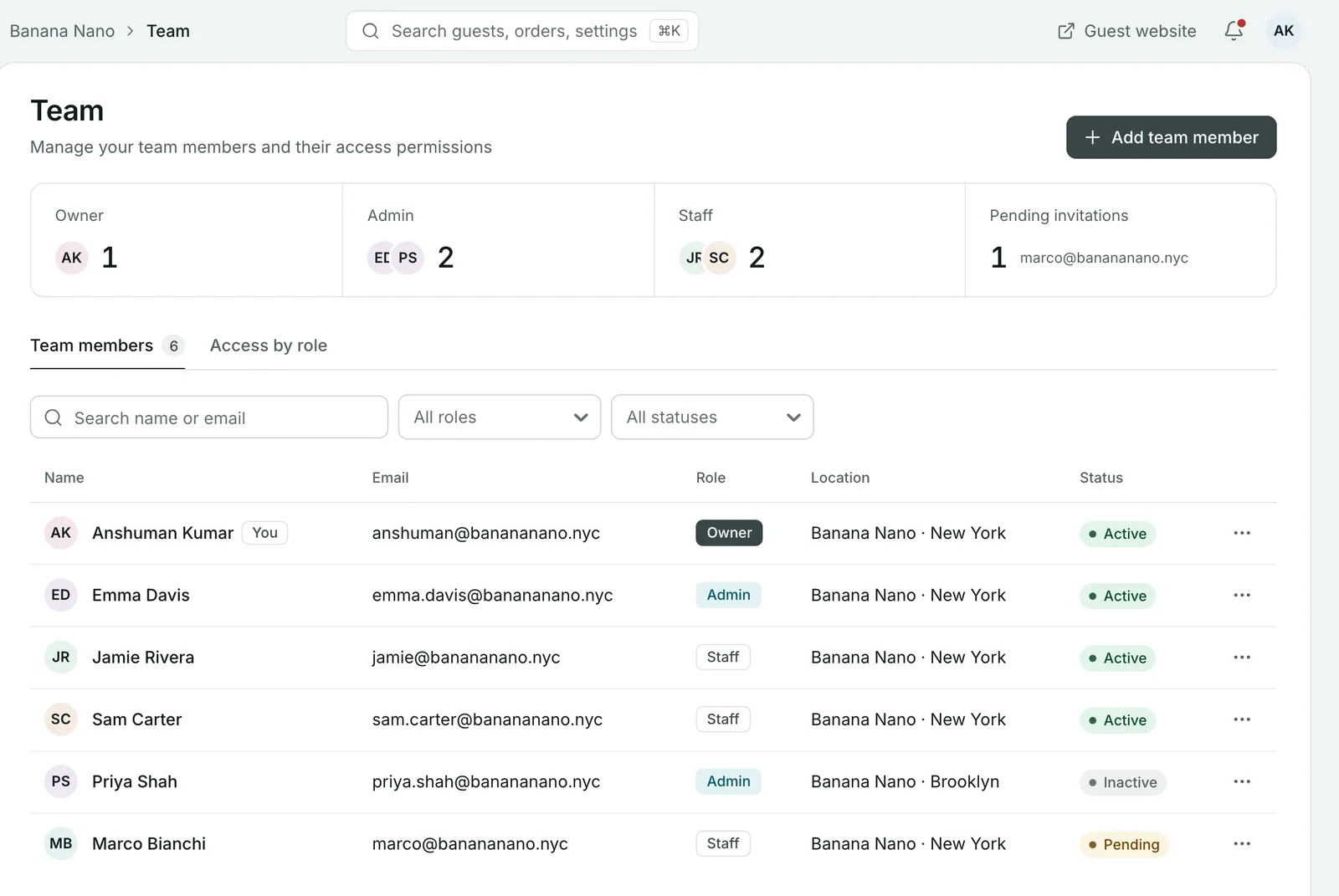
They get an email inviting them to set a password. Until they accept, they show under Pending invitations with the status Pending.
Step 2: Check everyone’s access
The Team members list shows each person’s email, role, location and status. Filter it by role or status, or search by name or email.
To change someone’s role or location, choose Edit from their actions and select Save changes.
When someone leaves
Do this on their last day.
- Deactivate signs them out straight away and stops them signing in until you activate them again. Their history is kept. Use it for someone who may come back, such as seasonal staff.
- Remove takes away their access straight away. It can’t be undone.
Common questions
What can staff see?
Staff work service: Today and orders, reservations and the waitlist, and guests. They can't open the menu, marketing, reports, settings, or team, plan and billing.
What's the difference between Admin and Owner?
Admins can change the menu, marketing, reports and settings. Only the owner can manage the team, your plan and billing.
My new team member didn't get their invitation. What do I do?
Find them under Pending invitations or in the list with the status Pending, and choose Resend invitation from their actions. Check the email address is right first.
What's the difference between deactivating and removing someone?
Deactivating signs them out and stops them signing in until you activate them again, and their history is kept. Removing takes away their access straight away and can't be undone.
Can I add someone who works at more than one site?
Each team member is added to one location. Choose it in the Location field when you invite them.
Still stuck? Submit a ticket
Tell us what you're trying to do. We'll attach this guide to your ticket, so you don't have to explain it twice.